Royal Mail Click & Drop
Royal Mail Click and Drop is a free tool allowing merchants to buy and print postage labels online. Within your Click and Drop account, specify the package weight and the postage service you require, make your payment and print your label. Once you've attached the label to your package, you can drop it off at your local post office.
ShopWired's Click & Drop app offers a direct integration with this Royal Mail service, enabling you to automatically or manually export orders to your Click & Drop account.
To install the Click & Drop app:
- Navigate to Apps
- Locate the Royal Mail Click & Drop app
- Select
install this app
Requirements for using Click & Drop
Requirements for using Click & Drop
To use the Click & Drop app:
- You'll need to have a Click & Drop account. You can create one here
- You'll need to
- You'll need to configure the Click & Drop app
Adding your API keys from Click & Drop
Adding your API keys from Click & Drop
To add your Click & Drop API key to ShopWired's Click & Drop app:
- Log in to Click & Drop
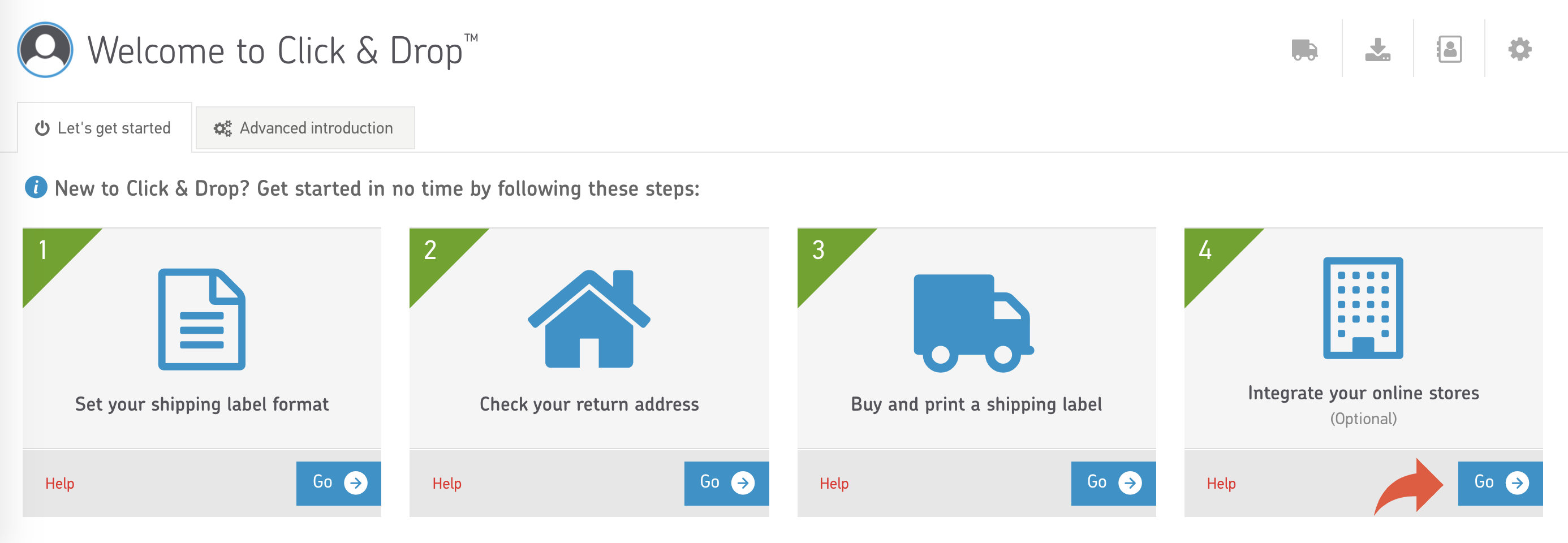
- Select dashboard from the menu and then integrate your online stores
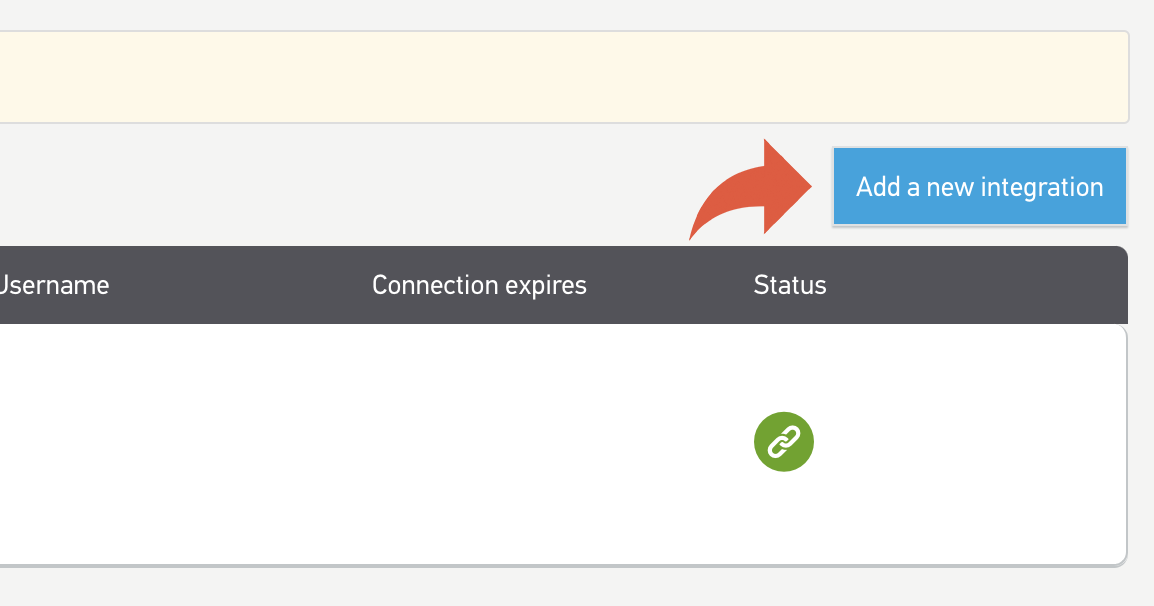
- Select add a new integration
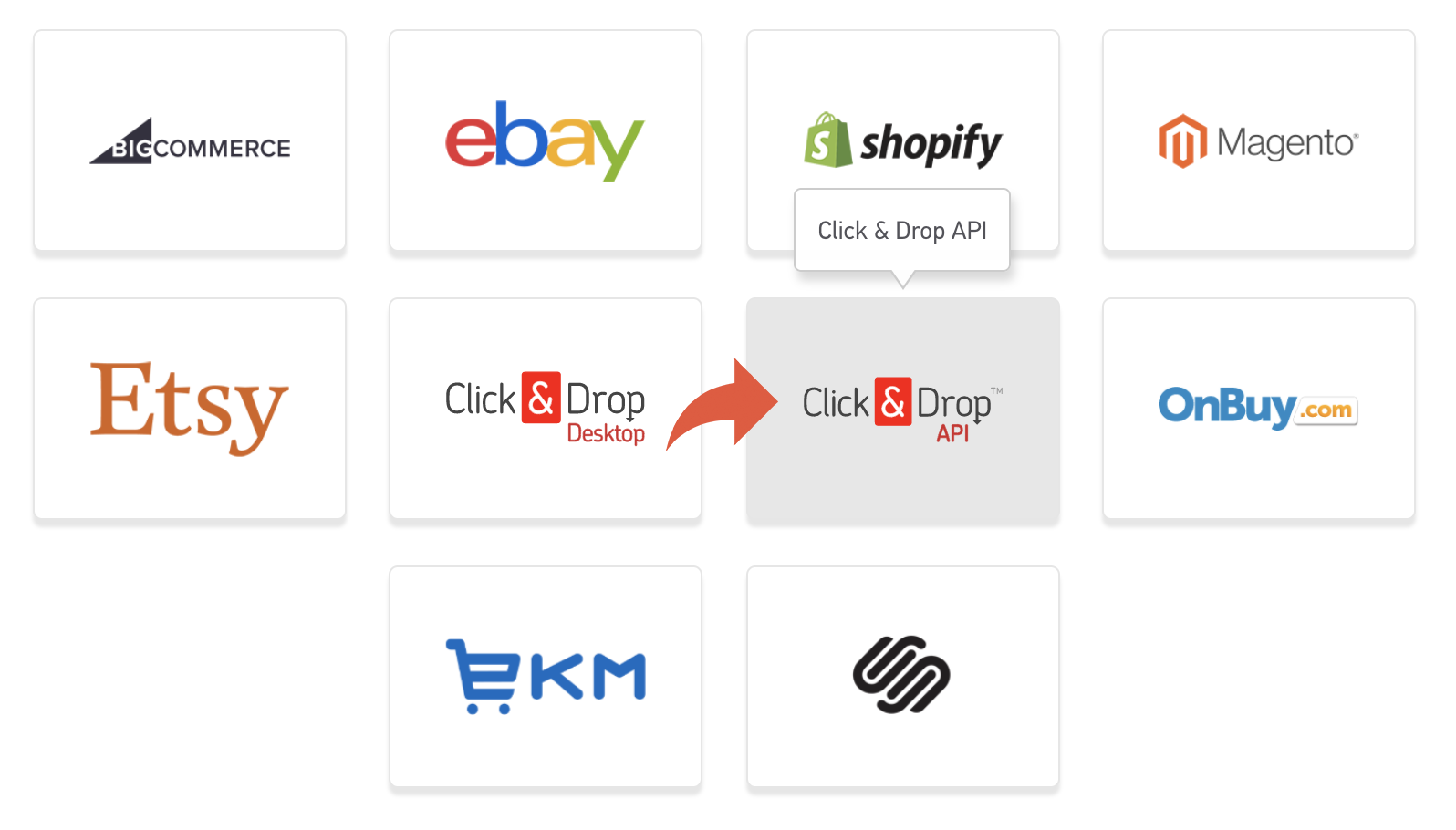
- Select the Click & Drop API button:
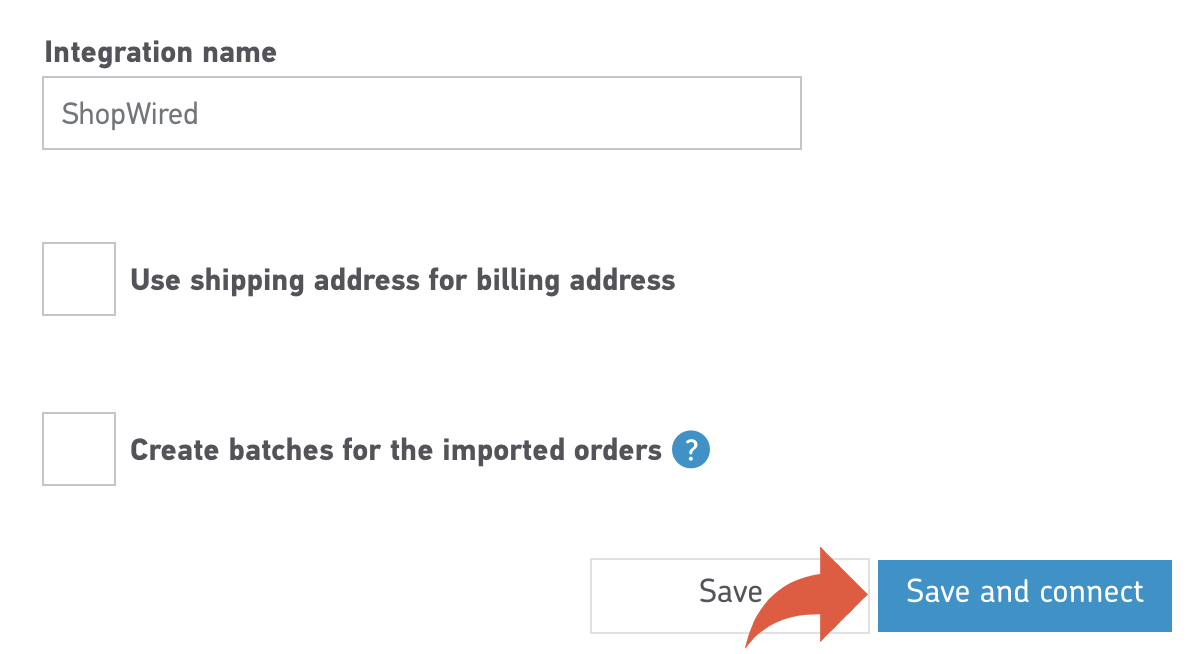
- Select your settings, and then select save and connect
- Once the integration has been created, click on its name in the integrations list
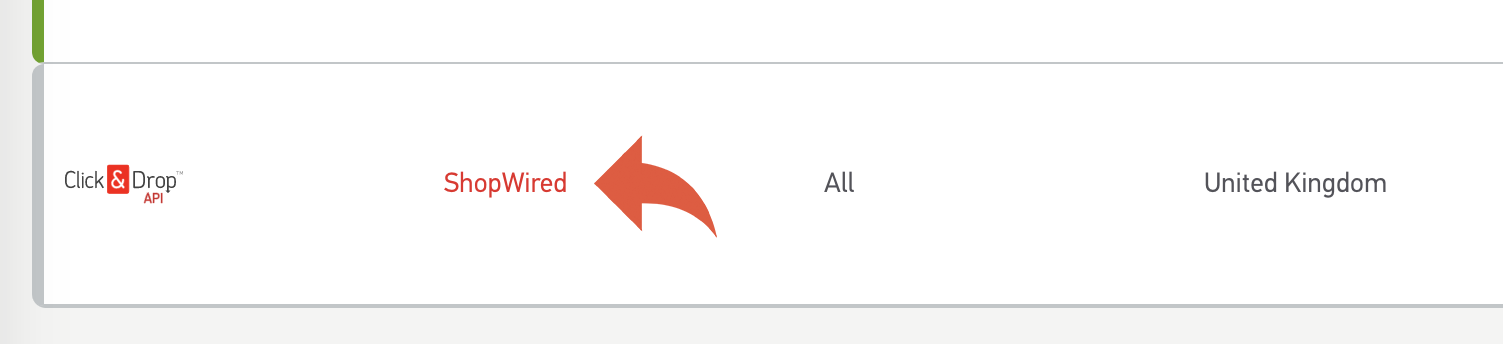
- Select the clipboard icon next to the API key to copy the key to your computer's clipboard
- Select update and connect

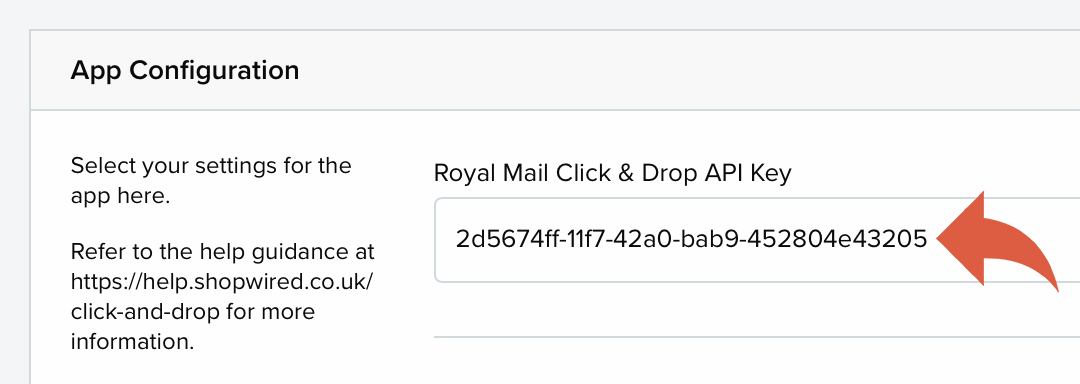
- In ShopWired navigate to Apps > Installed > Manage > Click & Drop
- Paste the API key into the Royal Mail Click & Drop API Key setting
- Select save changes
Royal Mail Click & Drop OBA/business accounts
Royal Mail Click & Drop OBA/business accounts
If you have a Royal Mail OBA/business account, you can select the I have an OBA account setting.
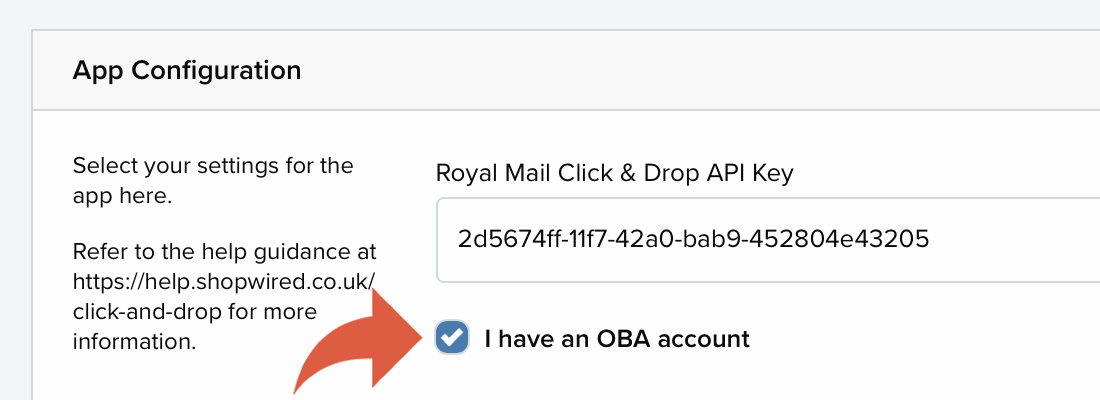
Selecting the OBA option will enable you to select the Parcel option in the Package Size drop-down, allowing you to select this option for your delivery rates.
This setting also changes the validation process that the app performs (ensuring service code and package size combinations are valid). You should therefore always check with your Royal Mail account to ensure you are selecting valid combinations as these will cause Royal Mail's API to reject the order.
Applying postage to Click & Drop shipments
Applying postage to Click & Drop shipments
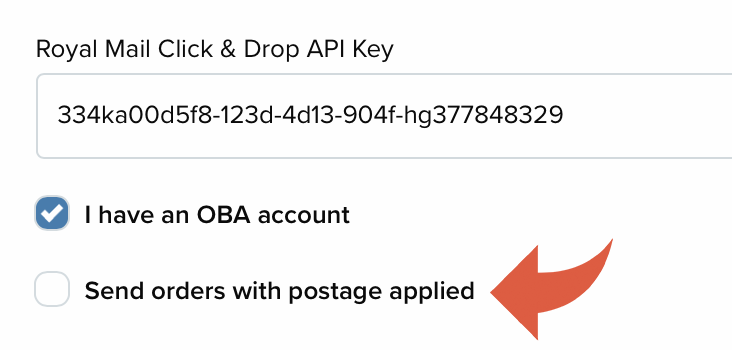
Orders are sent to Royal Mail's Click & Drop service with the postage service automatically applied. You can deselect the Send orders with post applied setting to apply postage manually.
Settings
Settings
How orders should be exported
Orders can be exported in one of two ways, either automatically or manually (through the app). In both cases, the app listens for changes to an order's status.
To export orders automatically to Click & Drop, select the Send orders automatically setting and select the order status an order should have for it to be exported.

To send orders manually to Click & Drop, select the Send orders manually setting and select the order status an order should have for it to appear in the Manual export section of the app.

Select what status an order should be changed to after being exported to Click & Drop
When an order has been successfully exported to Click & Drop, the app can automatically change the status of the order. You can select what status you'd like orders to be given, e.g. dispatched, from the setting.
Send an email to the customer once the order is exported to Click & Drop
To automatically send an order status email to customers once an order has been exported to Click & Drop (for example a Preparing to dispatch email) select this setting.
Include your (company) details on the order sent to Click & Drop
Select this setting to send company details (taken from your ShopWired account) to Click & Drop when an order is exported.
Who should receive email updates from Royal Mail about the order?
Updates about shipments are sent by Royal Mail when one of the following services is used:
- Tracked 24
- Tracked 24 with signature
- Tracked 48
- Tracked 48 with signature
Select this setting to determine whether you or your customer will receive these email updates from Royal Mail.
IOSS Number
Enter your IOSS number into this setting and it will be sent to Royal Mail Click & Drop for each order.
Send customs & duties amount
Select this setting and for orders where customers have pre-paid customs & duties for their order the app will send the amount paid to Royal Mail Click & Drop.
You should only enable this setting if you have DDP services available on your Royal Mail account, contact Click & Drop support for more information.
Send customs & duties amount as zero if no amount is paid
Enable this setting only when your Royal Mail DDP service requires a customs & duties value even when no eligible paid amount would otherwise be sent. DDP means delivery duty paid.
Enabling this setting changes the information sent to Royal Mail Click & Drop. Instead of omitting the customs & duties field when no eligible paid amount is available to send, the app sends 0 for international orders. An order is treated as international when the business country differs from the shipping recipient's country.
- When an eligible paid customs & duties amount is sent, that amount is retained
- When no eligible paid amount would otherwise be sent, the setting supplies
0as a fallback - Leaving this setting disabled preserves the existing behaviour of omitting the field when no eligible paid amount is sent
This setting is not a general solution for export errors and does not replace required product information, such as individual item weights.
Dispatch information
Dispatch information
Once a postage label has been purchased on the Click & Drop website, the Click & Drop app can:
- Automatically change the status of the corresponding order within your ShopWired account
- Add in the tracking information from Royal Mail into the
tracking URLsetting for the order - Tracking URLs are only available for Signed For, Special Delivery and other similar services
- Send an order status email to the customer
The Click & Drop app checks for dispatch information every hour for a maximum of 2 weeks following an order's export to Click & Drop.
Mapping delivery rates to Royal Mail services
Mapping delivery rates to Royal Mail services
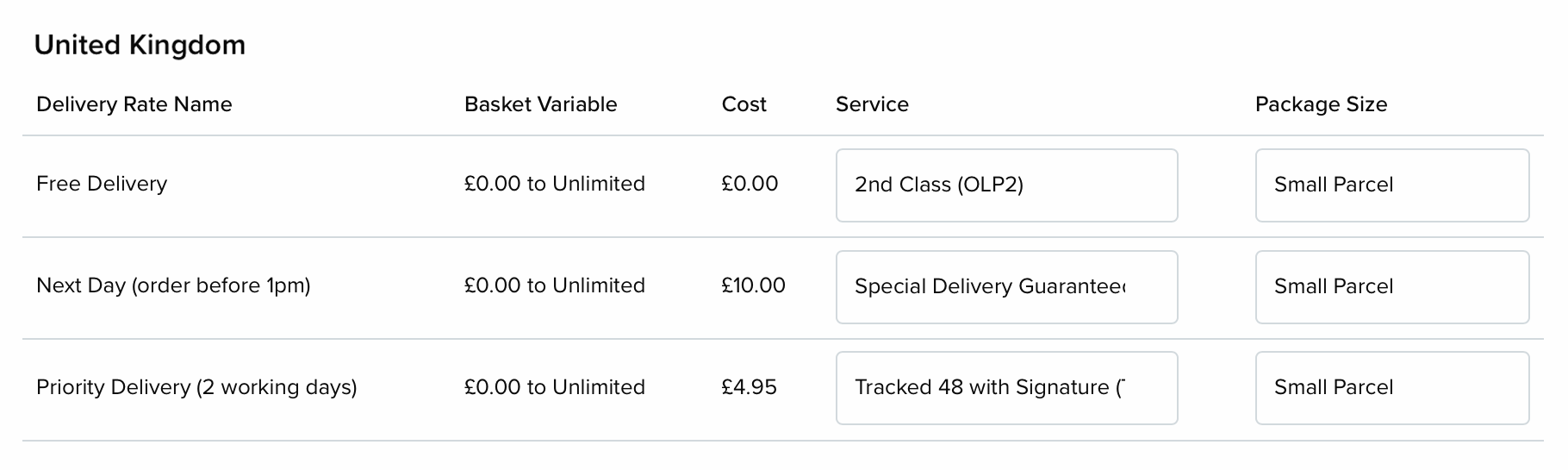
You can map each delivery rate in your ShopWired account to a corresponding Royal Mail service and package size in the delivery rates mapping section of the Click & Drop app. For orders using a different service, e.g. DHL, you do not need to map the delivery rates.
For each delivery rate, select the Service and Package Size from the available settings, then check Delivery Term as described below. Configure these mappings in the app, not in ShopWired's delivery-zone settings.
Delivery Term
Delivery terms describe the arrangements for import duties and taxes on a shipment. Use Delivery Term to leave Royal Mail's account default in place or send a specific term when an order is exported.
For automatic exports, select an option from the Delivery Term dropdown for each mapped delivery rate in the app's automatic mapping section.
- Select
Use Royal Mail account defaultto retain the existing behaviour: the app omitsdeliveryTermfrom the export, leaving Royal Mail to use your account default - Select a specific delivery term to send that term on export instead of relying on your Royal Mail account default
Existing mappings and newly added mappings initially display Use Royal Mail account default as the selected option, rather than a blank dropdown. Leave this selected unless you need to send a specific term. This does not change the default configured in your Royal Mail account.
Automatic export
Automatic export
To export orders automatically to Click & Drop, to the corresponding status selected for automatic export.
Once exported, orders take up to 2 minutes to export to Click & Drop and once exported will appear in your Click & Drop account where you can approve postage, pay for and then print the shipping label. Successfully exported orders appear in the Exported orders section.
If an order fails to export automatically it will appear in the Export errors section.
Manual export
Manual export
To export orders manually to Click & Drop, to the corresponding status selected for manual export.
Orders take up to 2 minutes to appear in the Manual export section once the order status has changed.
To export an order manually to Click & Drop:
- Navigate to the Orders ready for manual export section
- Locate the order to export manually
- Select
apply postage
- Create at least one package for the order (an order can be split across multiple packages if needed)
- Use the Total weight setting to configure the weight of the package
- Use the Package size setting to configure the size of the package you are sending (the list of available packages will be modified depending on the total weight)
- Use the Service setting to select the service for the package
- Select an option from the Delivery Term dropdown for the manual export
- Select
Use Royal Mail account defaultto omitdeliveryTermand leave Royal Mail to use your account default - Select a specific delivery term to send that term on export instead; check that it is suitable for your service, destination and account
- Select
- For deliveries outside the UK and from Great Britain to Northern Ireland, select the products and quantities included in each package (Royal Mail requires information about the package contents)
Custom service codes
Custom service codes
The app includes the 12 default service codes for delivery in the UK and 4 default service codes for international delivery.
To use alternative service codes (e.g. those provided through the OBA service):
- Navigate to the Custom service codes section
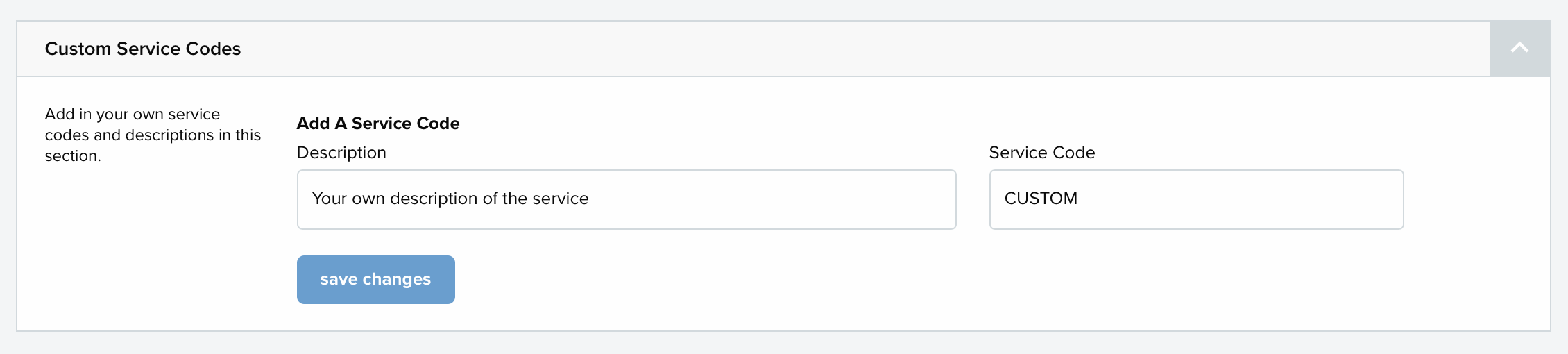
- Enter a Description for the service code (this is used for internal purposes only)
- Enter the Service code provided by Royal Mail
Once created, custom service codes will be available for you to map to your delivery rates.
Click & Drop export errors
Click & Drop export errors
If an order fails to export to Click & Drop, it will be displayed in the Export errors section.
Orders can fail to export for a number of different reasons, for example, the delivery rate selected on the order was not mapped to a corresponding Royal Mail service.
Before retrying an export, check whether the order is already present in Click & Drop and follow the checks in Troubleshooting an export below. After correcting the cause, select retry export to try exporting the order again. Alternatively, select move to manual export to export the order manually.
Common export errors, reasons and solutions
| Error | Reason | Solution(s) |
|---|---|---|
An error occurred due to missing information |
The app failed to find a valid value for one or more of the following: number of packages, who to notify for tracking, Royal Mail service, recipient address, sub-total, total, the shipping charge, or the order reference number. | - Check the order to ensure the sub-total and total are present and positive numbers. - Check the order has a valid shipping address. - Check the delivery rate mapping in the app to ensure the delivery rate being used in the order has a valid Royal Mail service selected. |
The service was missing or invalid |
The app failed to find a valid Royal Mail service for the delivery rate being used by the order. | - Check the delivery rate mapping in the app to ensure a valid service has been selected for the delivery rate being used in the order. |
A package had an invalid combination of either service, package size, weight, or country |
The app could not find a valid Royal Mail service, a valid package format, valid package weight, or valid delivery country in the order. | - Check that the order products contain the correct weights. - Check that the shipping address has a valid country. - Check the delivery rate mapping in the app to ensure a service and package format have been selected for the delivery rate in use. |
A package had a missing or invalid weight or package size |
The app could not find a valid package weight or package format. | - Check that the products within the order have the correct weights and check the delivery rate mapping in the app to ensure a package format has been selected for the delivery rate in use. |
The order had no recognisable packages |
The app couldn't find any valid products to put into the Royal Mail order. | - Check that all products in the order have a valid price and weight. |
No API key found |
The app has received a valid order but cannot find an API key. This error means that the user either has not provided an API key in the app settings or they have provided an invalid API key. | - Check there is a valid API key within the Royal Mail Click & Drop API Key setting inside of the App Configuration section. |
Royal Mail's API rejected the order... |
The app attempted to send the order to Royal Mail, but they have rejected the order. The app has not received a reason for the rejection from Royal Mail's API. | - Review the order looking for incorrect combinations of product weights, package formats, and service codes. If no reason can be identified for the error, contact support. |
An error occurred while connecting to Royal Mail |
The app failed to generate a valid connection to the Royal Mail API. This is either caused by an outage with the app or an outage with Royal Mail's API. | - Please report this error to support. |
Royal Mail Error Message: ... |
These error messages are generated directly by Royal Mail. These can be caused by various things, but the error message should explain what the issue is. | - The error message generated by Royal Mail should inform the user what went wrong with the order. If no solution is obvious, contact the developer. |
Royal Mail Error Message: Property 'PhoneNumber' max length is 25, provided length is ... |
This error message is caused by the phone number for either the recipient address, billing address, or sender address being longer than 25 characters. | - Check the phone number length on the shipping and billing address for the order. - Check the company phone number length for the business in Website > Company information |
Royal Mail Error Message: Customs Duty Costs is only supported on DDP (delivery Duty Paid) Services. You do not have DDP services available on your account. |
A customs & duties amount has been sent, but the Royal Mail account or selected service does not accept it. Both Send customs & duties amount and Send customs & duties amount as zero if no amount is paid can cause a value to be sent. | Check both settings. Do not enable the zero fallback setting if you use non-DDP services. Contact Click & Drop support to confirm which services accept customs & duties amounts before changing your configuration. |
Troubleshooting an export
Troubleshooting an export
Use these checks alongside the error table above.
Check Click & Drop before retrying
Search Click & Drop for the order reference, including archived and manifested orders. If the order or any of its packages is already present, do not resend it without checking what was accepted. An error does not always mean that nothing reached Royal Mail.
Record the complete error message before changing settings. If it names a particular product or package, check that item first.
Check package contents and individual weights
For manual exports outside the UK or from Great Britain to Northern Ireland, check that each package has its products and quantities selected. Entering Total weight alone does not select the package contents or supply missing individual item weights. If splitting an order, check the quantities allocated to each package.
Check which information needs correcting
Changes to a product do not necessarily update every value used by an existing order.
- Correct Royal Mail - Customs Description and Royal Mail - Custom Origin Country on the product before retrying an existing order's export
- Do not assume changing the current product weight repairs weights stored with an earlier order; for an existing-order weight error, check the manual package details and contact ShopWired support if individual item weights remain missing or incorrect
- For address or telephone errors, check the affected order's delivery and billing details, not only the customer record; also check the sender's details if the error identifies them
For telephone numbers exceeding 25 characters, follow the checks in the error table above. If a telephone number is missing, obtain the correct number from the customer rather than entering a placeholder.
Check service and account settings together
When sending orders with postage applied, check the delivery rate's service code, package size, weight and destination together. Confirm that the service is available on your Royal Mail account and that I have an OBA account matches your account type. A service code being available in the app does not confirm that your account can use it.
If Royal Mail reports an IOSS or delivery-terms error, check Delivery Term for the mapped delivery rate or manual export. Selecting a specific term sends it on export; Use Royal Mail account default leaves the term to Royal Mail's account default. Ask Click & Drop support to confirm which term is suitable for the service, destination and account. Do not change tax identifiers or service codes solely to bypass an error.
Information to provide to support
If the cause remains unclear, contact ShopWired support with:
- The affected order reference and the approximate date and time of the export attempt
- The complete error message or a screenshot
- Whether the export was automatic or manual, and whether postage was applied
- The destination country, whether the delivery is from Great Britain to Northern Ireland, and the selected service code and package size
- Whether the order or any packages are already visible in Click & Drop
- The checks completed, settings changed and any successful comparison order
Do not include API keys or access tokens in screenshots or messages.
Windsor Framework: Shipping to Northern Ireland
Windsor Framework: Shipping to Northern Ireland
From 1 May 2025, the Windsor Framework introduces new regulations for shipping goods from Great Britain (England, Scotland, and Wales) to Northern Ireland. These regulations require additional data to be provided for parcels, depending on the type of shipment.
ShopWired's Click & Drop app integrates with Royal Mail's service to facilitate order exports. To comply with the Windsor Framework, you must ensure that all required data fields are accurately provided.
Complete the initial Windsor Framework configuration in your Click & Drop account before exporting through the app. These Great Britain-to-Northern Ireland requirements do not apply to deliveries wholly within Northern Ireland. Confirm the requirements for your account and delivery type using Royal Mail's Click & Drop Windsor Framework guidance.
Enter EORI and UKIMS Numbers in Click & Drop
For Business-to-Business (B2B) shipments:
- Enter your Economic Operators Registration and Identification (EORI) number in to your Royal Mail Click & Drop account
- If your goods are classified as 'not at risk', input your UK Internal Market Scheme (UKIMS) number in your Royal Mail Click & Drop account
Record B2B shipments
For deliveries from Great Britain to Northern Ireland, Royal Mail may require you to identify whether the recipient is a business. The Send recipient business status to Click & Drop setting controls whether the app sends this information using an order custom field. Confirm the requirements for your account and service with Click & Drop support.
To configure the field and enable the setting:
- Install the Custom fields app if it is not already installed
- Navigate to Settings > Custom fields and select
create custom field - Select
orderfor Item type - Enter
rm_customs_is_recipient_a_businessfor Name - Enter a Label (display name), such as 'This is a business delivery address'
- Select
Togglefor Type to display a checkbox - Enable Display this field on your website's checkout for visitors to use and save the custom field
- In the Click & Drop app, select Send recipient business status to Click & Drop and save your changes
The Name must match exactly; the Label (display name) is the text displayed to customers. Customers should tick the checkbox for a business delivery address and leave it unticked for a residential address. No custom checkout JavaScript is needed for this checkbox setup.
The setting determines what the app sends when exporting orders:
| App setting | Order custom field | Recipient business status sent |
|---|---|---|
| Disabled | Any value or missing | Not sent (isRecipientABusiness is omitted) |
| Enabled | Ticked | Business (true) |
| Enabled | Unticked, blank or missing | Residential (false) |
Before exporting a business order created outside checkout, populate the correct order custom field. Review older orders before exporting them too. Order custom field data can be added or amended in the Custom fields section when creating or editing an order; read more about order custom fields.
Use the named order custom field, not a checkout order question. Order questions store answers as order comments, which this setting does not read. This setting is separate from the customs & duties amount settings and does not replace the other information Royal Mail requires.
Enter product specification information
For international deliveries and deliveries from Great Britain to Northern Ireland, ensure each product in your ShopWired account includes:
- HS tariff code
- Royal Mail - Custom Origin Country
- Royal Mail - Customs Description
This information can be added when creating or editing products or via the product import/export system.
Required product and business data
| Shipment Type | Required Information |
|---|---|
| Business to Business (B2B) | - Exporter (Sender) EORI Number - Importer (Receiver) EORI Number - UKIMS Number (if declaring goods as 'not at risk') - Goods Description - Country of Origin - Gross Mass (Weight) - Total Value |
| Business to Consumer (B2C) | - Goods Description - Weight (per item) - Value (per item) - Country of Origin |
| Consumer to Business (C2B) | - Goods Description - Weight (per item) - Value (per item) - Country of Origin - Returned Goods Indicator |
| Consumer to Consumer (C2C) | - Goods Description - Weight (per item) - Value (per item) |
For more detailed information on the Windsor Framework and its requirements, please refer to the official Royal Mail guidance: Royal Mail and The Windsor Framework.
International shipping (product requirements)
International shipping (product requirements)
When shipping orders internationally, Royal Mail requires certain information about each product in the shipment to formulate a :
- An
- An
- A
- An
This information can be added for products either when creating or editing the product or when using the product import/export system.
When provided for a product in ShopWired, its manufacturer part number (MPN) and global trade item number (GTIN) are also sent automatically to Click & Drop when an order is exported. MPN is sent as the non-standardised product identifier (NS-PID), and GTIN as the standardised product identifier (S-PID). No additional app settings are required.

